Using the Search Translator

Source: Adobe Stock
As we approach the end of the year, we have several changes to announce with Quadra 12.1. The new search translator simplifies advanced searches and features have been added to the asset and claims modules.
Search translator
We are excited to introduce another AI-enabled feature based on natural language processing (NLP) to expedite advanced searches. Before this release, the advanced search feature required manually selected fields, operators, and criteria. With the new search translator added to the Advanced search tab, Quadra can automatically build search rules based on a description typed in by the user.
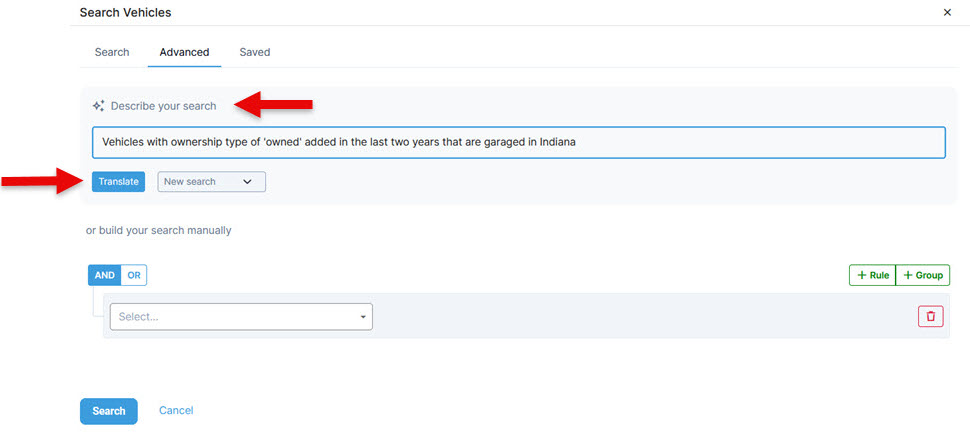
The search translator, denoted by the field ‘Describe your search’, is available for most modules in Quadra. In the ‘Describe your search’ field, use plain text to specify what you are looking for. Include search terms and field names. An example might be Vehicles with ownership type of 'owned' added in the last two years that are garaged in Indiana.
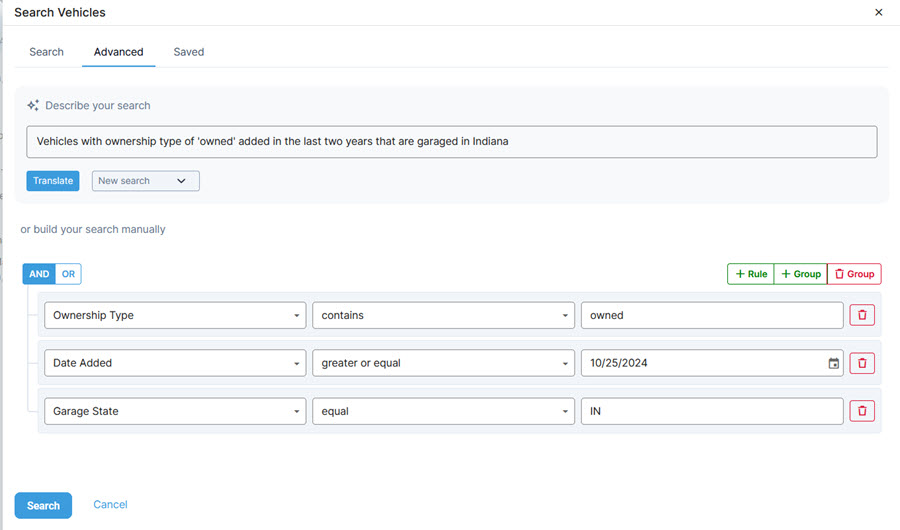
Once you click Translate, the search translator will build search rules including fields, operators, and criteria to fit the request as closely as possible. The rules can still edited before running the search:
Reinstatement of assets
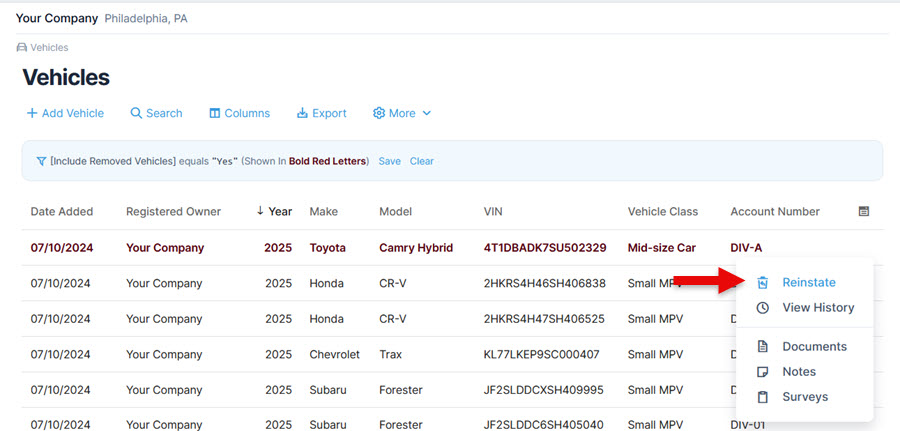
With this release, it is now possible to add removed assets back to the grid. A reinstatement feature has been added to the action menu for the Items, Other Exposures, Structures, and Vehicles modules. When Reinstate is selected, the Date Removed for the removed asset is cleared.
Click Reinstate on a removed asset to delete its removal date and restore the asset to the grid default view:
 ?
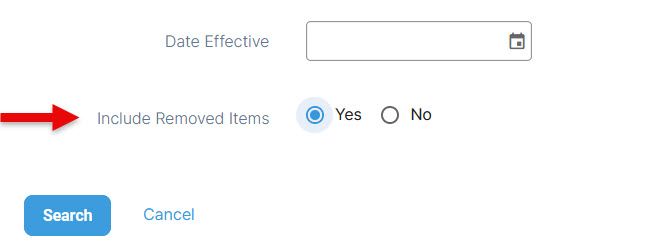
Note that users must make the removed assets visible in the grid before performing a reinstatement. This is done using the ‘Include’ feature after clicking Search:
Closed claims included
Lastly, we have updated the Claims module so that closed claims are shown by default along with the open claims in the module grid.
Stay tuned for more updates and best wishes for the incoming holiday season!