Manage Support Issues
Manage Issues from Your Account
Manage Issues from the Support Center
Edit a Comment or View History of Edits
Access support issues from either Your Account or from the Support Center window. Manage the issues you have submitted, plus add and view comments as needed.
Manage Issues from Your Account
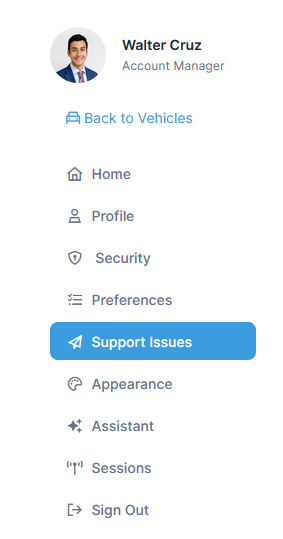
- Open Support Issues from Your Account.
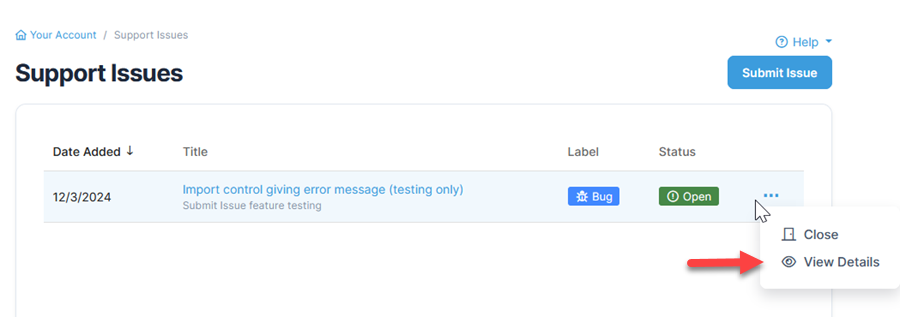
- From the Support Issues page, find the issue in the list. Under the action menu, select View Details.
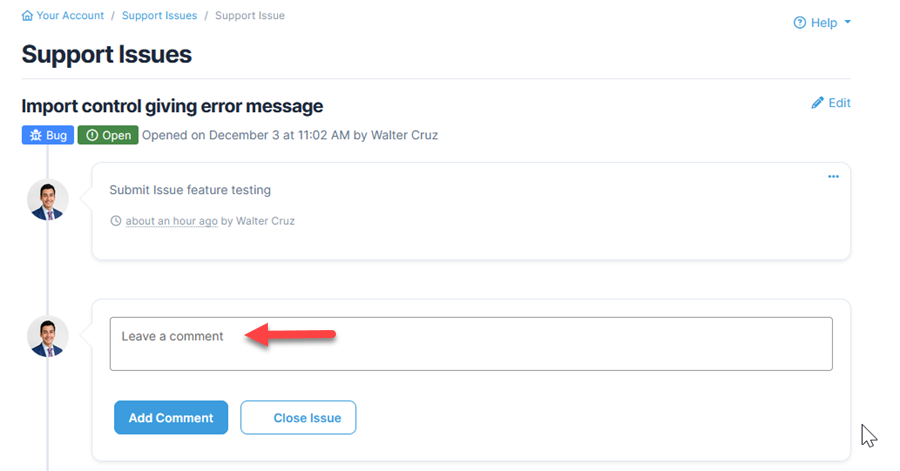
On the issue details page, both the user and development team will have the option to add or edit comments, or edit the title or label. Changes made to the issue or the status will be noted in the thread.
Manage Issues from the Support Center
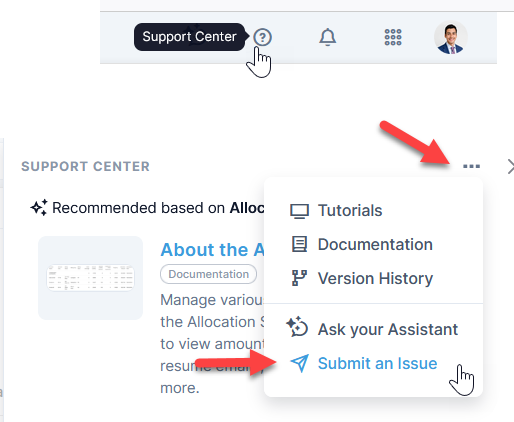
- Select the Help icon at the top right to open the Support Center.
- Then click the elipsis at the top right of the window and select Submit Issue.
Add a Comment
On the issue details page, type a comment into a comment box and click Add Comment.
Edit a Comment or View History of Edits
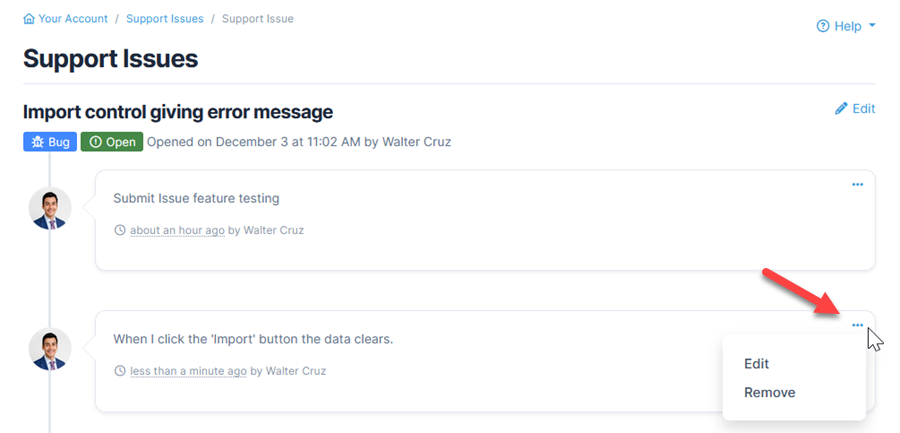
To edit a comment on the issue details page, click the ellipses in a comment box and click Edit. A history of comment changes will be recorded.
Return to Support Issues
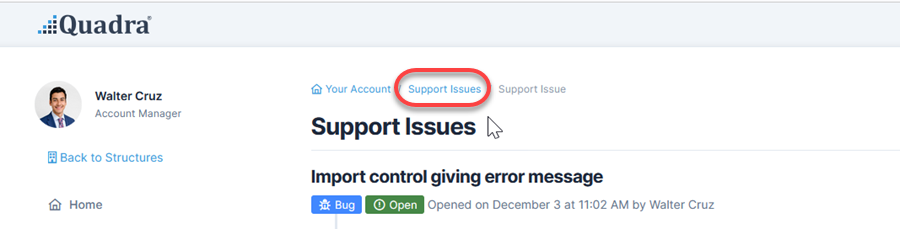
From the details page, click Support Issues in the breadcrumb or in the left menu to return to the issues grid.
If a user makes a change on the Submit Issue page, (i.e. a comment is added or edited or the status is changed), a notification email will be sent to the development team. If a member of the development team adds a comment or makes a change on the Submit Issue page, you will receive a notification email. You will be able access issues using the email link.