Table of Contents
Add User-Defined Currency Amount
Example of a user-defined currency amount field:
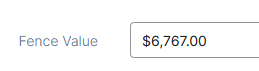
Add User-Defined Currency Amount
- Open User-Defined Fields from Administration.
- On the main User-Defined Fields page, click Add User-Defined Field.

- Fill out the User-Defined Fields General section:
- Type in a Field Name.
- In the Control Type menu, select Currency.
- Leave Default Value blank.
- For Display Order select a number. If you have multiple user-defined fields on a form together, this number will determine the order in which they will appear. If all fields are given the same number, they will sort by the order in which they were added.
- For Is Required select Yes or No.
- At the top of the form, click the Module tab.
- Fill out the Module section:
- Select the Module from the drop-down list.
- Check the boxes for the Module Components in which this new field will appear.
- At the top of the form, click the Accounts tab.
- Check the boxes for the Accounts in which this field will appear. If you don't select any accounts, the user-defined field will appear in all accounts.
- Click Add Field.